You've registered a domain. You've signed up for hosting. You've pointed the nameservers. Now what?
Now you build the website. And the fastest, most beginner-friendly way to do that is with WordPress — the same platform used by over 40% of all websites on the internet, from personal blogs to Fortune 500 company sites.
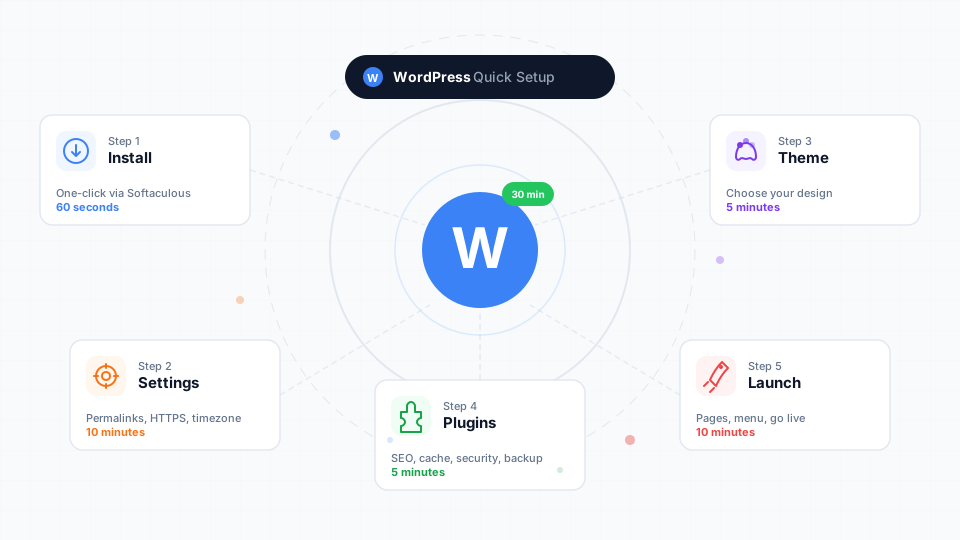
This guide takes you from a blank hosting account to a working website in 30 minutes. No coding. No design skills. Just follow the steps.
Why WordPress?
Before we start, a quick note on why WordPress is the default recommendation for most website owners:
- Free and open source — WordPress itself costs nothing. You only pay for hosting and your domain.
- No coding required — The visual editor lets you build pages by dragging and dropping blocks.
- 60,000+ plugins — Need a contact form, online store, booking system, or SEO tools? There's a plugin for it.
- Thousands of themes — Professional designs you can customise without touching code.
- Massive community — Any problem you encounter has already been solved and documented by someone else.
- Your hosting supports it — Every Cynet hosting plan is built to run WordPress efficiently.
What You'll Need
Before starting, make sure you have:
| Requirement | Status |
|---|---|
| A domain name | Registered and pointed to your hosting (DNS guide) |
| A hosting plan | Active with cPanel access (what is cPanel?) |
| SSL certificate | Active — most plans provision this automatically (why SSL matters) |
| 30 minutes | That's genuinely all you need |
Part 1: Install WordPress (5 Minutes)
There are two paths depending on your hosting plan:
If You're on Business Hosting: Use Softaculous
- Log in to cPanel (how to log in)
- Find Softaculous Apps Installer in the Software section
- Click WordPress → Install
- Fill in the key settings:
| Setting | What to Enter |
|---|---|
| Protocol | https:// (if SSL is active) |
| Domain | Select your domain |
| Directory | Leave blank (installs on your main domain) |
| Site Name | Your business or website name |
| Admin Username | Choose something unique — never use "admin" |
| Admin Password | Use the generator for a strong password. Save it somewhere safe. |
| Admin Email | Your email address |
- Click Install — done in 60 seconds
Our Help Center has the full Softaculous installation walkthrough with every field explained.
If You're on WordPress Hosting: It's Already Done
WordPress Hosting plans come with WordPress pre-installed and managed through WP Toolkit — a more powerful management interface. When you activate your hosting, WordPress is ready to go.
Log in to cPanel → click WP Toolkit → click Log in next to your site to access the WordPress dashboard immediately.
See our WP Toolkit guide for managing your WordPress installation.
Part 2: Essential First-Time Settings (10 Minutes)
WordPress is installed, but the default settings need adjusting before you start building. Log in to your WordPress dashboard at yourdomain.com/wp-admin.
2.1 — Set Your Permalinks (URL Structure)
This determines what your page URLs look like. The default is ugly (?p=123). You want clean URLs.
- Go to Settings → Permalinks
- Select Post name
- Click Save Changes
yourdomain.com/about-us instead of yourdomain.com/?p=42. Do this first — changing permalinks later can break existing links.
2.2 — Verify Your Site URLs Use HTTPS
- Go to Settings → General
- Ensure both fields use
https://:
https://yourdomain.com - Site Address (URL):https://yourdomain.com- Set your Site Title and Tagline
- Set the correct Timezone (for Malaysia, select
UTC+8) - Click Save Changes
2.3 — Configure Reading Settings
- Go to Settings → Reading
- Your homepage displays: Choose "A static page" once you've created your homepage (we'll do this shortly)
- Search engine visibility: Make sure "Discourage search engines from indexing this site" is unchecked (unless you're still building and not ready for visitors)
2.4 — Delete Default Content
WordPress ships with sample content. Remove it:
- Posts → All Posts → delete "Hello world!"
- Pages → All Pages → delete "Sample Page" and "Privacy Policy" (you'll create your own later)
- Comments → delete the sample comment
2.5 — Set Your Display Name
- Go to Users → Profile
- Change Display name publicly as to your real name or business name — not your login username
- This is what appears as the author on blog posts
Part 3: Choose and Install a Theme (5 Minutes)
A theme controls how your website looks. WordPress comes with a default theme, but you'll want something that matches your business.
How to Install a Free Theme
- Go to Appearance → Themes → Add New Theme
- Browse or search for a theme
- Click Install → Activate
Recommended Free Themes for Beginners
| Theme | Best For | Why |
|---|---|---|
| Astra | Business sites, portfolios | Lightweight, fast, works with all page builders |
| Kadence | Small businesses | Modern design, built-in header/footer builder |
| GeneratePress | Performance-focused sites | Extremely lightweight, clean code |
| Flavor starter theme | Simple sites | Minimal, block-editor optimised |
Tips for Choosing a Theme
- Less is more. Pick a clean, simple theme and customise it. Avoid themes that look amazing in the demo but load slowly due to heavy animations and effects.
- Check the ratings and update date. A theme last updated 3 years ago may not work with the latest WordPress.
- Stick to the WordPress theme directory for free themes. Third-party sites sometimes bundle malware in "free" premium themes.
- Speed matters. A lightweight theme on good hosting will outperform a heavy theme on any hosting. Read our guide on speeding up WordPress for more.
Customise Your Theme
After activating a theme, go to Appearance → Customize to:
- Upload your logo
- Set your site colours to match your brand
- Configure the header and navigation menu
- Set a homepage layout
Part 4: Install Essential Plugins (5 Minutes)
Plugins add features to WordPress. There are over 60,000 available, but you only need a handful to start. Install too many and you'll slow your site down.
How to Install a Plugin
- Go to Plugins → Add New Plugin
- Search for the plugin by name
- Click Install Now → Activate
The Starter Plugin Kit (6 Plugins)
These cover the essentials every website needs:
| Plugin | Purpose | Why You Need It |
|---|---|---|
| Yoast SEO (or Rank Math) | Search engine optimisation | Helps Google find and rank your pages |
| LiteSpeed Cache | Caching and speed | Dramatically speeds up page loading (works best on Cynet hosting with LiteSpeed servers) |
| UpdraftPlus | Backups | Automatic backups so you never lose your site (why backups matter) |
| Wordfence (or Sucuri) | Security | Firewall, malware scanning, login protection |
| WPForms Lite | Contact forms | Drag-and-drop form builder for enquiry forms |
| Limit Login Attempts Reloaded | Login security | Blocks brute-force password attacks |
Plugins to Avoid
- Plugins that duplicate hosting features — Your hosting already provides SSL, backups, and caching. Don't install redundant plugins.
- Multiple plugins for the same purpose — Don't run two SEO plugins or two caching plugins simultaneously. They'll conflict.
- Plugins not updated in 2+ years — They may have security vulnerabilities or compatibility issues.
Part 5: Create Your First Pages (5 Minutes)
Every business website needs at least three pages. Let's create them.
How to Create a Page
- Go to Pages → Add New Page
- Enter a title
- Use the block editor to add content — type
/to see available blocks (paragraph, heading, image, list, button, etc.) - Click Publish when ready
The Three Essential Pages
1. Home Page
Your homepage is the first thing most visitors see. Keep it focused:
- Hero section: A clear headline explaining what you do, a supporting sentence, and a call-to-action button
- Services or products: Brief overview of what you offer
- Trust signals: Client logos, testimonials, or certifications
- Contact prompt: Make it easy to get in touch
2. About Page
- Who you are and what your business does
- Why customers should trust you
- A brief history or story (people connect with stories, not bullet points)
- A team photo if you have one
3. Contact Page
- A contact form (use the WPForms plugin you installed)
- Your business email address (set up professional email if you haven't)
- Phone number and WhatsApp link (if applicable)
- Business address and Google Maps embed (if you have a physical location)
- Operating hours
Set Your Homepage
After creating your homepage:
- Go to Settings → Reading
- Select A static page
- Set Homepage to the page you just created
- Set Posts page to a page called "Blog" (create an empty one if needed)
- Click Save Changes
Create a Navigation Menu
- Go to Appearance → Menus (or Appearance → Editor → Navigation in block themes)
- Create a new menu
- Add your pages: Home, About, Contact
- Set it as the Primary Menu
- Save
Part 6: Final Checks Before Going Live
Before you share your URL with anyone, run through this checklist:
Technical Checks
- [ ] SSL is active — Your site loads with
https://and shows a padlock in the browser - [ ] Permalinks are set — URLs use words, not numbers
- [ ] Site loads on mobile — Open your site on your phone and check it looks right
- [ ] Contact form works — Submit a test message and verify you receive it
- [ ] All links work — Click through your navigation and make sure nothing is broken
SEO Basics
- [ ] Yoast/Rank Math is configured — Run through the setup wizard
- [ ] Page titles and meta descriptions are set for your homepage, about, and contact pages
- [ ] Search engine visibility is on — Settings → Reading → "Discourage search engines" should be unchecked
- [ ] Google Search Console — Create a free account and submit your sitemap (
yourdomain.com/sitemapindex.xml)
Security Basics
- [ ] Admin username is not "admin" — Change it if it is
- [ ] Strong passwords for WordPress and cPanel
- [ ] Automatic updates are enabled for minor WordPress releases
- [ ] Backup plugin is running and tested
What to Do in Week 2
Your website is live. Here's what to focus on next:
- Add more content — Create pages for your services or products. Each page is an opportunity to rank in Google.
- Start a blog — Write helpful articles for your audience. This drives organic search traffic over time.
- Set up Google Business Profile — If you have a local business, this is essential for appearing in Google Maps and local search results.
- Monitor speed — Use Google PageSpeed Insights to check your loading time. Our WordPress speed guide covers optimisation techniques.
- Set up email — If you haven't already, create a professional email address through your hosting. Read our professional email setup guide.
Common First-Week Mistakes
Installing Too Many Plugins
Every plugin adds code to your site. More plugins means slower loading, more potential conflicts, and a bigger security surface. Start with 6, add only when you have a specific need.
Choosing a Theme Based on the Demo Alone
Demo sites look amazing because they're loaded with custom images, content, and settings. Your site won't look like the demo out of the box. Choose a theme based on layout flexibility and speed, not the demo's stock photos.
Ignoring Backups
Your website can break. Plugins update, themes conflict, you accidentally delete something. A backup lets you restore everything in minutes. Configure UpdraftPlus to back up daily to Google Drive or Dropbox.
Not Setting Up HTTPS From Day One
If your WordPress and Site URLs use http:// instead of https://, you'll need to do a database search-and-replace later to fix it. Always use https:// from the start.
Skipping the Mobile Check
Over 60% of web traffic in Malaysia comes from mobile devices. If your site doesn't look right on a phone, you're losing the majority of your visitors. Test on real devices, not just by resizing your browser window.
Which Hosting Plan Is Best for WordPress?
Both Business Hosting and WordPress Hosting run WordPress. The difference is in the infrastructure and tools:
| Feature | Business Hosting | WordPress Hosting |
|---|---|---|
| Best for | Multiple sites, general hosting | WordPress-focused performance |
| WordPress installer | Softaculous (one-click) | Pre-installed |
| Management tools | Softaculous | WP Toolkit (staging, cloning, security hardening) |
| Server technology | LiteSpeed | LiteSpeed + NVMe SSD |
| Avg. page load | Fast | 0.8 seconds |
| Starting price | RM 14.99/month | RM 17.99/month |
Wrapping Up
You now have a working WordPress website with:
- WordPress installed and configured
- Clean URL structure
- A professional theme
- Essential plugins for SEO, speed, security, backups, and contact forms
- Core pages (Home, About, Contact)
- A navigation menu
From here, your website grows with your business. Add pages, publish blog posts, install new features as you need them. WordPress scales with you.
Need help choosing a hosting plan to get started? Compare WordPress Hosting and Business Hosting, or read our full guide on choosing the best web hosting for your business.