A visitor lands on your website. The clock is already running.
After 1 second, 70% are still patient. After 3 seconds, 53% are gone. After 5 seconds, you've lost the majority of traffic you spent money to acquire.
This isn't a slight inconvenience — it's the single biggest invisible cost most website owners pay every day. And it's almost always fixable.
This guide explains why websites get slow, what Google's Core Web Vitals actually measure, and the practical steps you can take to make your site faster — even if you don't know any code.
Why Website Speed Matters
Speed isn't just about user patience. It directly affects three things every website owner cares about:
1. Conversions
A site that loads in 1 second converts visitors 3x better than one that loads in 5 seconds. Whether your "conversion" is a sale, a contact form submission, or a newsletter signup — every additional second of loading time chips away at it.
2. SEO Rankings
Google explicitly uses page speed as a ranking factor. Sites with strong Core Web Vitals scores rank higher than slower competitors with otherwise equal content. This effect is even stronger on mobile.
3. Bounce Rate
When pages are slow, visitors leave before the page finishes loading. Google sees this as a signal that your page didn't satisfy the user — and ranks it lower next time.
What Actually Slows Down Websites
Before you can fix speed problems, you need to know what causes them. Most slow websites share the same handful of issues:
Slow Hosting
Your hosting server processes every request before sending content to the visitor. Cheap, overloaded shared hosting on slow hardware (HDD instead of SSD, outdated PHP, no caching) adds 2–3 seconds before anything even starts loading.
Unoptimised Images
Photos straight from a phone or camera are often 5–10 MB each. Multiply that by 10 images on a page and you're shipping 50 MB to every visitor — most of whom will give up waiting.
Too Many Plugins
Each plugin adds CSS files, JavaScript files, and database queries. A WordPress site with 30 plugins loads slower than one with 8, regardless of how good the hosting is.
No Caching
Without caching, your server rebuilds every page from scratch for every visitor — running database queries, processing PHP, applying themes. Caching stores the finished page and serves it instantly.
Heavy Themes
Some WordPress themes look impressive in demos but bundle huge amounts of code, animations, and external resources. A bloated theme can add 3+ seconds of load time on its own.
No CDN
Without a Content Delivery Network, every visitor downloads your site from a single server location. A visitor in London loading a site hosted in Malaysia has to wait for data to physically travel across the planet.
What Are Core Web Vitals?
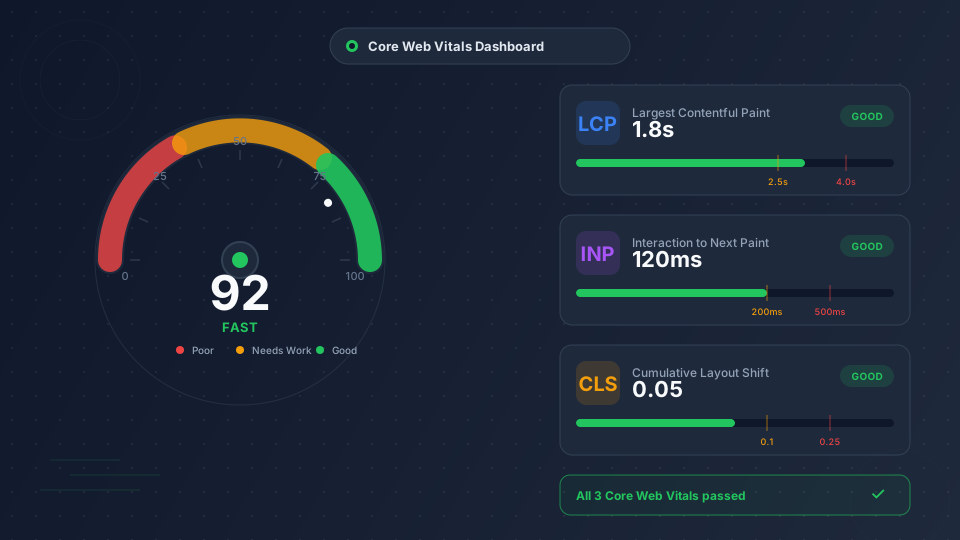
Core Web Vitals are Google's standardised metrics for measuring real-world user experience. There are three of them, and Google now uses them as ranking signals.
| Metric | What It Measures | Good Score |
|---|---|---|
| LCP — Largest Contentful Paint | How quickly the main content of the page appears | Under 2.5 seconds |
| INP — Interaction to Next Paint | How quickly the page responds when users click, tap, or type | Under 200 milliseconds |
| CLS — Cumulative Layout Shift | How much the page layout jumps around as it loads | Under 0.1 |
- Good (green)
- Needs Improvement (yellow)
- Poor (red)
LCP — Largest Contentful Paint
LCP measures how long it takes for the biggest visible thing on your page (usually a hero image or headline) to appear. This is what the visitor perceives as "the page loaded."
Common causes of poor LCP:
- Slow server response time (cheap or overloaded hosting)
- Unoptimised hero images (massive file size, wrong format)
- Render-blocking JavaScript or CSS
- No browser caching
- Use fast hosting with caching (LiteSpeed servers cache pages automatically)
- Compress and convert hero images to WebP format
- Use a CDN to serve content from closer to the visitor
- Preload the LCP image with a
tag
INP — Interaction to Next Paint
INP measures responsiveness. When a visitor clicks a button, opens a menu, or types in a search box — how quickly does the page react?
Common causes of poor INP:
- Heavy JavaScript blocking the browser's main thread
- Too many third-party scripts (analytics, chat widgets, ad networks)
- Inefficient code in plugins or themes
- Reduce the number of plugins
- Defer non-critical JavaScript
- Remove unused scripts (e.g., disable jQuery if your theme doesn't need it)
- Audit third-party widgets — each one adds JavaScript overhead
CLS — Cumulative Layout Shift
CLS measures stability. Have you ever tried to click a button just as an ad loaded above it and pushed everything down? That's a layout shift. CLS measures how much your page jumps around as it loads.
Common causes of poor CLS:
- Images without explicit
widthandheightattributes - Ads or embeds that load after the page renders
- Fonts that swap in late ("flash of unstyled text")
- Dynamic content injected above existing content
- Always set
widthandheighton - Reserve space for ads and embeds before they load
- Preload web fonts and use
font-display: swap - Avoid injecting content above the fold after page load
How to Test Your Website Speed
You can't improve what you don't measure. Here are the three tools every website owner should know.
Google PageSpeed Insights — The Standard
pagespeed.web.dev is free and uses Google's official Lighthouse engine. It scores your site from 0–100 for both mobile and desktop, and shows your actual Core Web Vitals scores from real users.
How to use it:
- Enter your URL
- Wait 15–30 seconds for the analysis
- Look at the Core Web Vitals Assessment at the top — it shows pass/fail for each metric
- Scroll to Opportunities for specific, prioritised fixes
- Check both Mobile and Desktop tabs
GTmetrix — Detailed Waterfall Analysis
gtmetrix.com shows a detailed waterfall chart of every file your site loads, in order. This makes it easy to spot specific slow resources (a 5 MB image, a slow third-party script, etc.).
The free tier tests from a limited set of locations. For Malaysian businesses, test from Singapore or Hong Kong for the most relevant results.
WebPageTest — Advanced Diagnostics
webpagetest.org offers the most detailed analysis: filmstrip views, multi-location testing, repeat view testing (to verify caching), and connection throttling.
It's overkill for beginners but invaluable when troubleshooting specific issues.
The Speed Optimisation Roadmap
Now that you know what to measure, here's the order to attack speed problems in. Start at the top — the biggest wins come from the first few items.
1. Choose Fast Hosting (Biggest Single Factor)
Your hosting is the foundation. If your server takes 2 seconds to respond, no amount of optimisation will make your site fast.
What "fast hosting" means in practice:
| Feature | Why It Matters |
|---|---|
| LiteSpeed Web Server | 2–3x faster than Apache for dynamic sites, includes server-side caching |
| NVMe SSD storage | 7x faster than traditional SATA SSDs for database queries |
| PHP 8.2+ with OPcache | Latest PHP versions are dramatically faster than older ones |
| HTTP/3 + Brotli compression | Modern protocols reduce transfer size and connection overhead |
| Server in your region | Closer servers = lower latency = faster response |
2. Enable Page Caching
Caching is the single highest-impact change you can make on an already-running site.
On WordPress:
- LiteSpeed Cache — Best option on LiteSpeed servers (free)
- WP Super Cache or WP Rocket — Strong alternatives on other servers
- Cloudflare's free tier provides page caching at the edge
- cPanel's built-in caching options (varies by host)
3. Optimise Your Images
Images are usually 60–80% of a page's total size. Compressing them is the biggest single optimisation most sites need.
What to do:
- Convert to WebP format (30–50% smaller than JPEG at the same quality)
- Compress before uploading using TinyPNG or Squoosh
- Use the right size — never upload a 4000×3000 photo for a 600×400 display slot
- Enable lazy loading so off-screen images only load when needed (WordPress does this automatically)
4. Use a CDN
A Content Delivery Network stores copies of your site on servers around the world, serving content from the location closest to each visitor.
Cloudflare's free tier is the easiest entry point — it adds CDN, basic caching, and DDoS protection in about 10 minutes:
- Sign up at cloudflare.com
- Add your domain
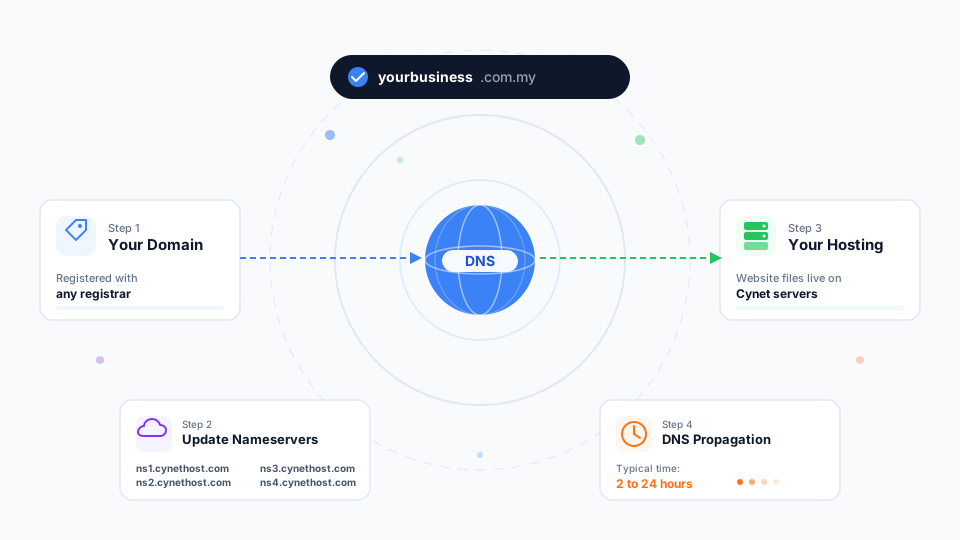
- Update your nameservers (how to update nameservers)
- Wait for propagation
5. Audit Your Plugins (WordPress)
Every plugin adds load time. Go through your installed plugins:
- Delete any you're not actively using
- Replace duplicate-purpose plugins (don't run two SEO plugins or two caching plugins)
- Test with all plugins disabled to identify slow ones — re-enable one at a time and measure speed
6. Minify CSS and JavaScript
Minification removes unnecessary spaces, comments, and characters from your code files. It can shave 20–30% off file sizes with no visible difference.
Most caching plugins (LiteSpeed Cache, WP Rocket) handle this automatically — just enable the minification option.
7. Use Modern PHP
PHP 8.2 and 8.3 are dramatically faster than older versions like PHP 7.4. If your site is still on PHP 7.x, upgrading often improves performance by 20–30% with no other changes.
See our Help Center guide on how to change your PHP version in cPanel for step-by-step instructions.
8. Reduce Third-Party Scripts
Each external script (analytics, chat widgets, ad networks, social media embeds) blocks page rendering and adds bytes to download.
- Use Google Tag Manager to load analytics asynchronously
- Replace heavy embeds (YouTube iframes) with lightweight lazy-loaded alternatives
- Audit chat widgets — many add 200–500 KB of JavaScript
Quick Wins by Site Type
If you only have time for the top three optimisations, here's where to start based on what you have:
WordPress Site on Cheap Hosting
- Upgrade hosting to a LiteSpeed-based plan (biggest single improvement)
- Install LiteSpeed Cache and run the default optimisation preset
- Compress all existing images with a plugin like ShortPixel or Smush
Static HTML Site
- Enable Cloudflare (free CDN + caching)
- Convert images to WebP and add
loading="lazy"to off-screen images - Minify CSS and JS files before uploading
WooCommerce Store
- Move to WordPress Hosting with object caching (Redis or Memcached)
- Reduce product image sizes and enable lazy loading
- Disable cart fragments AJAX if your theme doesn't use a mini-cart
What to Expect After Optimisation
Realistic expectations matter. After implementing the optimisations above, most sites see:
- Load time: 50–70% reduction (e.g., 4s → 1.2s)
- PageSpeed score: 30–50 point improvement on mobile
- Core Web Vitals: Move from "Poor" or "Needs Improvement" to "Good" zones
- Bounce rate: 10–20% reduction
- Conversions: 5–15% improvement (varies by site)
Common Speed Mistakes
Obsessing Over the PageSpeed Score
A 100/100 score is satisfying but not necessary. Google ranks based on Core Web Vitals, which are real-user metrics — not the synthetic score. A 75 score with passing Core Web Vitals beats a 95 score with failing ones.
Installing Multiple Caching Plugins
Caching plugins conflict with each other and can cause cached pages to break. Pick one and stick with it.
Optimising Before Measuring
Don't randomly install plugins because "they make sites faster." Test first, identify the actual bottleneck, then fix that specific issue.
Ignoring Mobile
Mobile is where speed problems hit hardest — weaker CPUs, slower networks. If your desktop loads in 1 second but mobile takes 5, mobile is your priority.
Not Re-testing After Changes
Always measure before and after. Sometimes a "speed plugin" actually makes things worse on your specific setup.
Wrapping Up
Page speed is one of the rare areas in web development where the inputs are clear and the outputs are measurable. You can't always predict what content will rank in Google, but you can predict that compressing your images will make your site faster.
Here's your action checklist:
- Test your current speed at pagespeed.web.dev — note your scores
- If you're on cheap hosting, upgrade to a LiteSpeed-based plan (biggest single improvement)
- Install a caching plugin (LiteSpeed Cache if available)
- Compress and convert your images to WebP
- Add a free CDN like Cloudflare
- Re-test and compare the before/after scores
Want to start with fast hosting? Cynet's WordPress Hosting plans include LiteSpeed Web Server, NVMe SSD storage, and LiteSpeed Cache pre-configured — most sites move into the "Good" Core Web Vitals zone the day they migrate.
For platform-specific tuning, our 10 proven ways to speed up WordPress covers WordPress-specific optimisations in detail.