Here's a statistic that should make every website owner uncomfortable: a cyberattack happens somewhere on the internet every 39 seconds. And the targets aren't just large corporations — small business websites are attacked more frequently, precisely because hackers know they're less likely to be properly secured.
The good news? Most attacks exploit the same handful of weaknesses. You don't need a cybersecurity degree to defend against them. You need a checklist — and the discipline to follow it.
This guide gives you that checklist. Every item is practical, beginner-friendly, and can be done through your hosting control panel or WordPress dashboard.
Why Small Websites Get Hacked
Before we fix anything, it helps to understand what you're defending against. Small websites are targeted because:
- Automated bots scan millions of sites daily looking for known vulnerabilities. They don't care if you get 10 visitors or 10,000 — they check everyone.
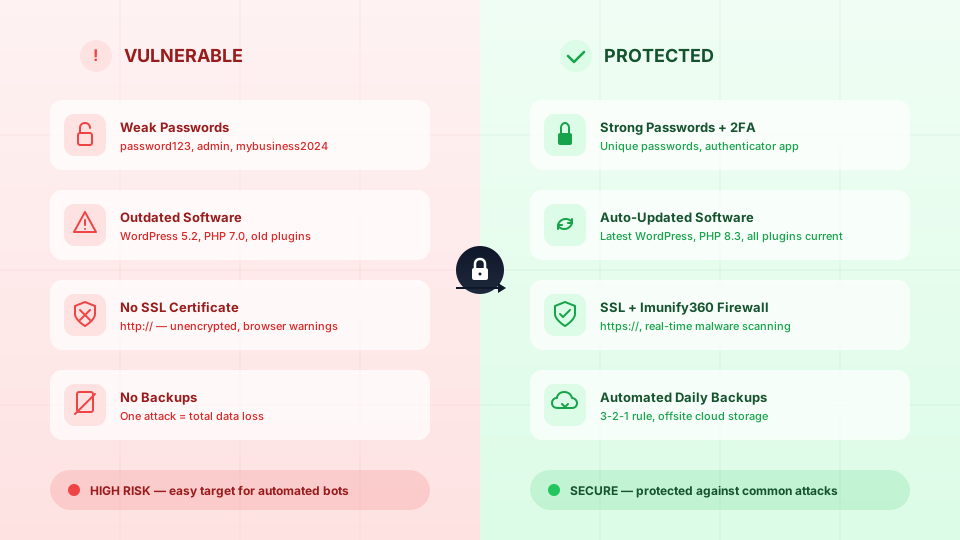
- Weak passwords are still the #1 way attackers get in. If your WordPress or cPanel password is
password123, a bot will crack it in seconds. - Outdated software (old WordPress versions, unpatched plugins) contains known security holes that are publicly documented. Attackers don't even need to be clever — they just use the published exploit.
- Shared hosting means your site shares a server with others. If another site on the server is compromised, a poorly configured server could expose yours too.
- Send spam emails from your server
- Inject malicious links for SEO manipulation
- Redirect your visitors to phishing or malware pages
- Mine cryptocurrency using your server resources
- Use your site as part of a botnet
The Security Checklist
1. Use Strong, Unique Passwords Everywhere
This is the single most impactful thing you can do.
| Account | Minimum Requirements |
|---|---|
| cPanel login | 16+ characters, mixed case, numbers, symbols |
| WordPress admin | 16+ characters, different from your cPanel password |
| Email accounts | 12+ characters, unique for each account |
| FTP accounts | 16+ characters, only create when needed |
| Database users | Auto-generated strong password |
- Never reuse passwords across accounts. If one service leaks your password, every account using it is compromised.
- Use a password manager (Bitwarden, 1Password, or even your browser's built-in one) to generate and store unique passwords.
- Never use your business name, domain name, or
adminin a password.
2. Enable Two-Factor Authentication (2FA)
A strong password protects against guessing. 2FA protects against password theft. Even if someone steals your password, they can't log in without the second factor — a time-based code from your phone.
Enable 2FA on:
- cPanel — Security → Two-Factor Authentication (setup guide)
- WordPress — Install a plugin like WP 2FA or Two-Factor
- Your email — cPanel 2FA automatically protects webmail login too
- Your domain registrar — Prevents someone from hijacking your domain
3. Keep Everything Updated
Outdated software is the second most common attack vector after weak passwords. Every update matters:
- WordPress core — Major and minor updates. Enable auto-updates for minor releases.
- Themes — Even inactive themes can be exploited. Delete any theme you're not using.
- Plugins — Update weekly. Delete any plugin you've deactivated and don't plan to use.
- PHP version — Older PHP versions (7.x and below) no longer receive security patches. Use PHP 8.2 or newer. (How to change PHP version)
- Back up your site first (always)
- Update plugins one at a time — if something breaks, you'll know which one caused it
- Update the theme
- Update WordPress core last
- Check your site after each step
If you're on a Cynet WordPress Hosting plan, WP Toolkit can auto-update everything and even test updates on a staging copy first.
4. Install an SSL Certificate
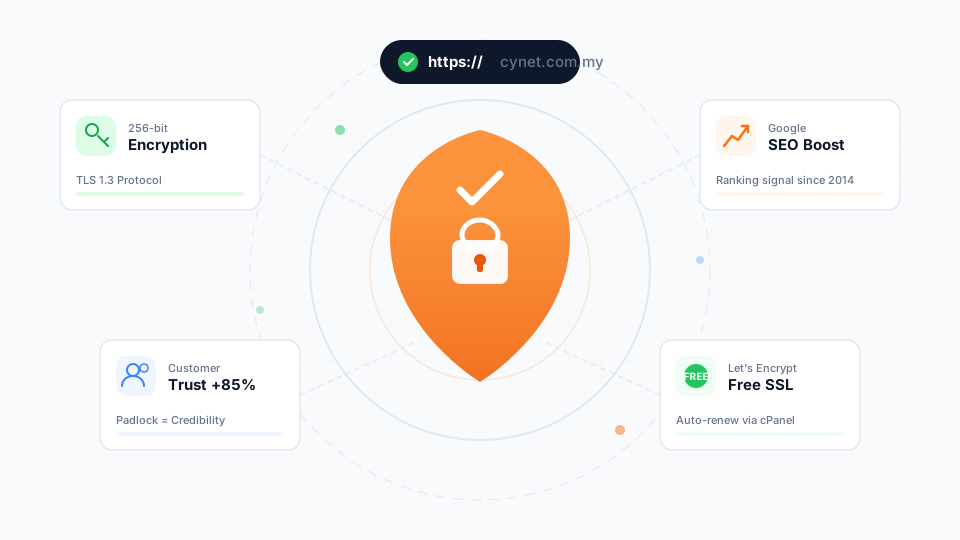
SSL encrypts the connection between your visitors and your server. Without it, login credentials, form submissions, and payment information travel as plain text — readable by anyone intercepting the traffic.
Every Cynet hosting plan includes free SSL via AutoSSL. To verify it's active:
- Log in to cPanel → SSL/TLS Status
- Your domain should show a green status
- If not, click Run AutoSSL
- In WordPress: Settings → General → both URLs should start with
https:// - Your
.htaccessshould redirect HTTP to HTTPS (most hosting setups do this automatically)
For a deeper dive on why SSL matters, read our guide on why every website needs an SSL certificate.
5. Back Up Your Website Regularly
Backups don't prevent attacks — they're your insurance policy when one succeeds. A clean backup means you can restore your entire site in minutes instead of rebuilding from scratch.
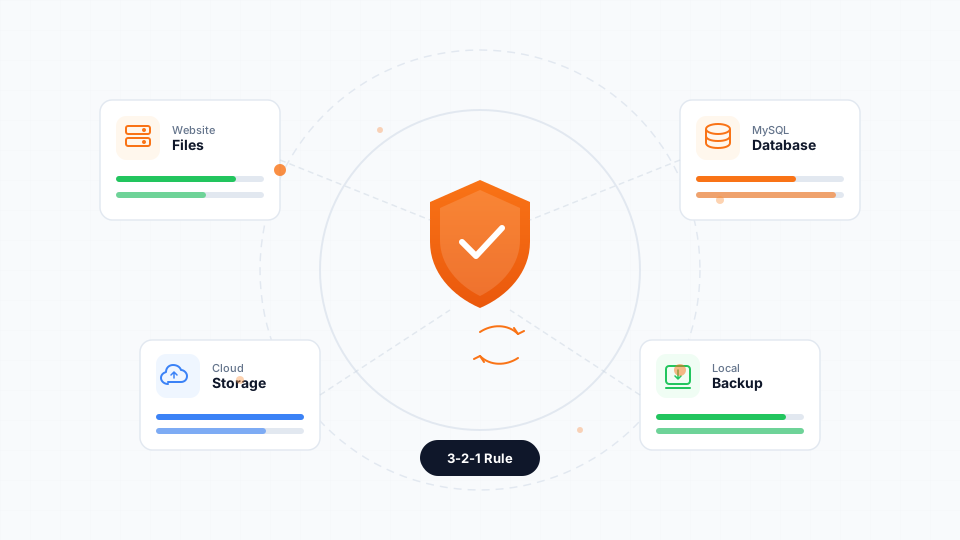
The 3-2-1 backup rule:
- 3 copies of your data
- 2 different storage types (hosting server + cloud storage)
- 1 copy offsite (Google Drive, Dropbox, etc.)
- UpdraftPlus plugin — Backs up WordPress files and database to cloud storage on a schedule
- cPanel Backup — Downloads a full copy of your hosting account
- Hosting provider backups — Cynet runs daily automated backups with 14-day retention
Our complete website backup guide covers every method in detail.
6. Use a Security Plugin (WordPress)
A security plugin acts as a firewall and malware scanner for your WordPress site. It blocks malicious traffic before it reaches your site and alerts you if something suspicious is found.
Recommended plugins (choose one):
| Plugin | Free Tier | Key Features |
|---|---|---|
| Wordfence | Yes | Firewall, malware scanner, login security, live traffic monitoring |
| Sucuri Security | Yes | File integrity monitoring, security hardening, post-hack tools |
| iThemes Security | Yes | Brute force protection, file change detection, database backups |
7. Protect Your Login Pages
WordPress login pages (/wp-admin and /wp-login.php) are the most attacked endpoints on any WordPress site. Bots hammer them with thousands of password combinations per hour.
Layers of defence:
- Limit login attempts — Install "Limit Login Attempts Reloaded" to block IPs after failed attempts
- Change the login URL — Plugins like WPS Hide Login move your login page from
/wp-adminto a custom URL. Bots can't attack what they can't find - CAPTCHA on login — Adds a human verification step that stops automated bots
- Block XML-RPC — The
xmlrpc.phpfile is an older API endpoint that bots commonly exploit. Disable it unless you specifically need it (most people don't)
8. Choose Secure Hosting
Your hosting provider is your first line of defence. The server-level security they provide protects you before your own measures even come into play.
What to look for:
| Feature | Why It Matters |
|---|---|
| Server-level firewall | Blocks malicious traffic before it reaches your site |
| Malware scanning | Detects compromised files automatically |
| DDoS protection | Prevents attackers from overwhelming your server |
| Automatic backups | Safety net when something goes wrong |
| Account isolation | Prevents other users on shared hosting from affecting your site |
| Free SSL | Encrypts all connections by default |
9. Harden Your WordPress Configuration
A few changes to your WordPress setup significantly reduce your attack surface:
In wp-config.php:
- Disable file editing from the dashboard — prevents attackers who gain admin access from modifying plugin/theme files directly:
define('DISALLOWFILEEDIT', true);
In your hosting:
- Set file permissions correctly — files should be
644, directories should be755, andwp-config.phpshould be600 - Remove the default
readme.htmlandlicense.txtfrom your WordPress root — they reveal your WordPress version
- Disable user registration if you don't need it (Settings → General → uncheck "Anyone can register")
- Change your admin display name so it doesn't match your login username
- Remove the WordPress version number from your site's source code (most security plugins do this)
10. Monitor and Respond
Security isn't a one-time setup — it's ongoing awareness.
Weekly:
- Check for WordPress, plugin, and theme updates
- Review your site briefly for anything unexpected (new pages, strange redirects, unfamiliar user accounts)
- Run a manual malware scan (security plugin or Sucuri SiteCheck)
- Check cPanel → Disk Usage for unexpected storage spikes (can indicate injected files)
- Review cPanel → Metrics → Errors for unusual patterns
- Change all passwords (cPanel, WordPress, email, FTP)
- Run a malware scan
- Check for unknown admin users in WordPress → Users
- Restore from a clean backup if necessary
- Contact your hosting provider's support team
What to Do If You've Already Been Hacked
If your site is already compromised — redirecting to spam, showing defaced content, or sending emails you didn't write — take these steps immediately:
- Change all passwords — cPanel, WordPress admin, all email accounts, FTP, database users. Every single one.
- Scan for malware — Use Imunify360 in cPanel (if available) or your security plugin
- Restore from backup — If you have a clean backup from before the hack, restore it
- Update everything — WordPress core, all plugins, all themes, PHP version
- Remove unknown accounts — Check WordPress → Users and cPanel → Email Accounts for anything you didn't create
- Check for backdoors — Hackers often leave hidden files that let them re-enter. A thorough malware scan should find these
- Enable 2FA — Prevent the same attack from working again
- Contact your host — They can check server logs, identify the entry point, and help clean up
If your email is sending spam you didn't write, see our guide on what to do when your email account is compromised. For phishing emails targeting your account, see how to identify phishing scams.
The Minimum Security Setup
If the full checklist feels overwhelming, here are the five things that prevent 90% of attacks. Do these first, then work through the rest over time:
- Strong, unique passwords on cPanel and WordPress (5 minutes)
- Enable 2FA on cPanel (guide) and WordPress (10 minutes)
- Verify SSL is active in cPanel → SSL/TLS Status (2 minutes)
- Install a security plugin — Wordfence or Sucuri (5 minutes)
- Set up automated backups with UpdraftPlus to cloud storage (10 minutes)
Wrapping Up
Website security doesn't have to be complicated. The attacks targeting small websites are automated and opportunistic — they succeed against the easy targets and move on when they encounter resistance. Every item on this checklist adds resistance.
Start with the minimum five, then work through the full checklist at your own pace. The most important thing is to start — a website with strong passwords, 2FA, and current software is already more secure than the vast majority of sites on the internet.
Every Cynet hosting plan includes built-in security features — Imunify360 malware scanning, DDoS protection, free SSL, daily backups, and account isolation — so you're starting from a strong foundation. The checklist above adds the layers that only you, as the website owner, can control.
Ready to get started? Browse Business Hosting or WordPress Hosting plans — security features are included on every tier.