You registered a domain from one company. You subscribed to hosting from another. You've built your website. But when you type the domain in your browser — nothing loads. Or worse, a "parked domain" placeholder from your old registrar shows up.
What's missing is the link between your domain and your hosting. That link is called DNS — and the good news is, connecting them takes less than 5 minutes once you know where to click.
This guide explains what DNS actually is, why it matters, and exactly how to point your domain to your hosting — in plain language.
What Is DNS?
DNS stands for Domain Name System. It's the technology that translates human-friendly domain names (like yourbusiness.com.my) into the numeric IP addresses that computers actually use to communicate (like 203.0.113.45).
Think of DNS as the phonebook of the internet:
- You ask: "Where does
yourbusiness.com.mylive?" - DNS answers: "At server 203.0.113.45"
- Your browser then connects to that server and loads the website
Why Does DNS Matter for Your Website?
When someone registers a domain, the domain itself is just a name — it doesn't automatically know where your website is hosted. You need to tell it.
Here's a typical scenario for Malaysian small business owners:
- You bought
yourbusiness.com.myfrom a domain registrar (maybe MYNIC, Exabytes, or GoDaddy) - You bought web hosting from a different company (like Cynet)
- Your website files are sitting on Cynet's servers, but your domain has no idea — it's still pointing at your registrar's default page
What Are Nameservers?
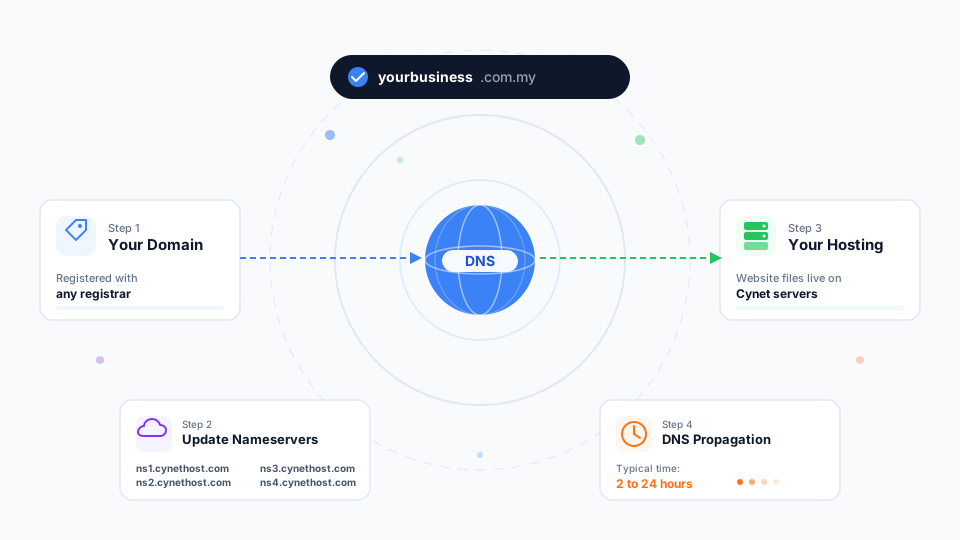
Nameservers are the DNS servers that hold the records for your domain. Every domain uses exactly one set of nameservers at a time, and that set determines which company manages your DNS.
When you sign up for hosting, your hosting provider gives you their nameserver addresses. For Cynet, they are:
| Nameserver |
|---|
ns1.cynethost.com |
ns2.cynethost.com |
ns3.cynethost.com |
ns4.cynethost.com |
Already registered your domain with Cynet? Your nameservers are automatically set to Cynet's — no action needed. This guide is for domains registered elsewhere.
The Big Picture: What Happens When Someone Visits Your Site
Here's what actually happens in the background when a visitor types your domain:
- Visitor enters
yourbusiness.com.myin the browser - Browser asks a DNS resolver: "Where does this domain live?"
- Resolver asks the root DNS: "Who manages
.com.my?" - Root DNS replies: "Ask the MYNIC nameservers"
- Resolver asks MYNIC: "Who manages
yourbusiness.com.my?" - MYNIC replies: "Ask
ns1.cynethost.com" (the nameserver you set) - Resolver asks Cynet's nameserver: "What's the IP address?"
- Cynet replies: "It's 203.0.113.45"
- Browser connects to that IP and loads your website
How to Point Your Domain to Your Hosting (5 Steps)
The process is the same regardless of which registrar you used — only the menu labels differ slightly.
Step 1: Find Your Hosting Provider's Nameservers
Your hosting welcome email contains the nameservers you need. For Cynet hosting, use all four:
ns1.cynethost.comns2.cynethost.comns3.cynethost.comns4.cynethost.com
Step 2: Log In to Your Domain Registrar
Go to the website where you bought the domain (not where your hosting is). Common registrars include:
- MYNIC (for
.myand.com.mydomains registered directly) - Exabytes
- GoDaddy
- Namecheap
- NetMyne
Step 3: Find the Nameserver Settings
Look for a menu labelled one of the following:
- Nameservers
- DNS or DNS Management
- DNS Servers
- Domain Settings → Nameservers
Step 4: Replace the Existing Nameservers
- Remove any existing nameservers (they'll usually be your registrar's defaults)
- Add all four Cynet nameservers
- Ensure there are no typos — nameservers are case-insensitive but spelling-sensitive
Step 5: Save and Wait
Click Save, Update, or Change Nameservers. The change is submitted instantly, but it takes time to spread across the internet — this is called DNS propagation.
Our Help Center has a complete step-by-step guide to pointing your domain with registrar-specific screenshots.
What Is DNS Propagation?
DNS servers around the world cache (remember) DNS answers to make the internet faster. When you change your nameservers, those cached answers need to expire before the new ones take effect.
Here's what to expect:
| Time Since Change | What's Happening |
|---|---|
| 0–30 minutes | Your change is registered at the registry, but still propagating |
| 30 minutes – 4 hours | Most users worldwide start seeing the new nameservers |
| 4–24 hours | Full propagation for the vast majority of locations |
| Up to 48 hours | Edge cases — ISPs with aggressive caching |
- Some visitors may see your new site, others still see the old one
- Your website may be temporarily inaccessible
- Email delivery may be delayed
How to Check Propagation Progress
Use a free tool like whatsmydns.net:
- Enter your domain
- Select NS (for nameserver records)
- View a global map showing which regions have picked up the new nameservers
After Propagation: What's Next?
Once your domain points to Cynet, everything else works through your hosting account:
- Your website loads — upload your files via cPanel File Manager or install WordPress with one click
- Email works — create addresses like
[email protected]in cPanel - SSL is issued automatically — AutoSSL provisions a free certificate within minutes
- DNS records are managed in cPanel — Zone Editor lets you add A, MX, CNAME, TXT records
New to cPanel? Read our beginner's guide to cPanel to understand what each section does.
Common DNS Records (Beyond Nameservers)
Pointing your nameservers is the biggest step, but DNS uses several record types for different purposes. You'll encounter these inside cPanel's Zone Editor:
| Record | Purpose | Example |
|---|---|---|
| A | Points a domain/subdomain to an IPv4 address | yourdomain.com.my → 203.0.113.45 |
| AAAA | Same as A, but for IPv6 addresses | yourdomain.com.my → 2001:db8::1 |
| CNAME | Aliases one name to another | www.yourdomain.com.my → yourdomain.com.my |
| MX | Directs email to the right mail server | mail.yourdomain.com.my handles email |
| TXT | Stores text data, used for SPF, DKIM, and domain verification | v=spf1 include:spf.cynethost.com ~all |
| NS | Specifies the nameservers for the domain | ns1.cynethost.com |
Want to understand each record type in more depth? See our Help Center guide on DNS record types.
Alternative: Using Your Registrar's DNS With an A Record
Instead of changing nameservers, some users keep their registrar's DNS and point only a specific record to their hosting. This is useful when:
- You're using a service like Cloudflare as your DNS provider
- You want to host email with one provider and web with another
- You need more granular DNS control
@ (the root domain) and www to your hosting server's IP address.
However, for most beginners, updating nameservers is simpler and more reliable. It's the recommended path unless you have a specific reason to do otherwise.
Common DNS Mistakes to Avoid
1. Changing Nameservers Before Your Website Is Ready
If you change nameservers before setting up your website on the new hosting, visitors will see a blank page or a "coming soon" message during the transition. Install WordPress (or upload your files) first, then update nameservers.
2. Entering Only Two Nameservers
All four nameservers should be added for redundancy. Missing nameservers can cause intermittent connection issues.
3. Typos in Nameserver Addresses
A single typo (ns1.cynethhost.com instead of ns1.cynethost.com) will break DNS entirely. Copy-paste from your welcome email whenever possible.
4. Changing Nameservers Repeatedly During Propagation
Every change restarts the propagation clock. If you've made a change, wait at least 24 hours before making another.
5. Forgetting About Email Records
If you were previously using your registrar's email hosting or Google Workspace, changing nameservers may route email to your new hosting instead. If you want to keep your existing email setup, recreate the MX records in cPanel's Zone Editor after propagation.
Troubleshooting
"This site can't be reached" 24+ Hours Later
- Double-check nameservers at your registrar for typos
- Use whatsmydns.net to confirm the NS records show Cynet's nameservers globally
- Verify your hosting account is active in the Cynet client area
- Clear your browser cache or try an incognito window
- Flush your local DNS cache:
ipconfig /flushdns - Mac: sudo dscacheutil -flushcacheWebsite Loads on Mobile but Not on Desktop (or Vice Versa)
This is almost always a DNS caching issue. Your ISP or local network is still serving the old DNS. Wait longer, or try from a different network (e.g., mobile data).
Old Website Still Showing
Your browser, ISP, or router is caching the old DNS answer. Try:
- Incognito / private browsing mode
- A different browser
- A different device on a different network
- Clearing DNS cache (see above)
Email Stopped Working After Nameserver Change
Your MX records may need to be recreated. Log in to cPanel → Zone Editor → verify MX records point to mail.yourdomain.com.my, or restore your previous email host's MX records if you want to keep using them.
Wrapping Up
DNS is the translator that connects your domain name to your hosting server. Pointing your domain is usually a 5-minute task — but it can look intimidating if no one explains what's happening.
Here's your quick reference:
- Get your hosting nameservers from the welcome email (four addresses for Cynet)
- Log in to your domain registrar — not your hosting provider
- Find nameserver settings under DNS or Domain Management
- Replace existing nameservers with all four from your hosting
- Save and wait 2–24 hours for DNS propagation
Need help choosing a domain or hosting plan to get started?
- Just looking for a domain? See our domain name registration guide and browse extensions at Cynet Domains
- Malaysian business? Read .COM.MY vs .COM to pick the right extension
- New to hosting? Our business hosting plans include free domain registration, unlimited email, and free SSL